Introduction
Many people overlook the M.2 slots on their desktop computers, often thinking they're only for storage upgrades. However, these small expansion slots can actually provide significant benefits for your system's performance and capabilities. In this tutorial, you'll learn how to identify your M.2 slots, understand what types of devices can be installed, and how to properly install one of the most useful expansion cards: a Wi-Fi and Bluetooth adapter. This upgrade will transform your desktop from a basic machine into a more modern, connected workstation.
Prerequisites
Before beginning this tutorial, you'll need the following:
- A desktop computer with at least one available M.2 slot
- Basic understanding of computer hardware and safety practices
- A working power source for your computer
- Small Phillips head screwdriver
- Anti-static wrist strap (optional but recommended)
- Wi-Fi and Bluetooth M.2 expansion card (typically 2230 or 2242 form factor)
Why these prerequisites matter: Understanding your computer's hardware is crucial for safe installation. The anti-static wrist strap protects sensitive components from static electricity damage, which can occur even in small amounts. Having the correct expansion card ensures compatibility with your system's specifications.
Step-by-Step Instructions
1. Identify Your M.2 Slots
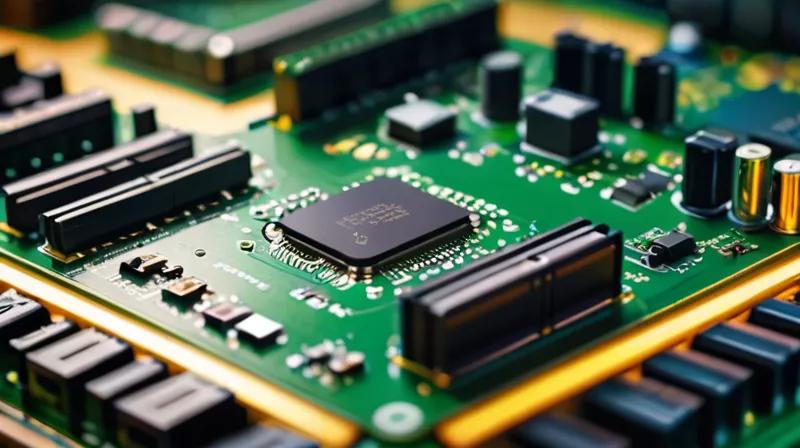
First, you need to locate the M.2 slots on your desktop. These are small, rectangular slots typically found on the motherboard. They're often labeled with "M.2" or "M.2 Key" and may have different key types (like Key M or Key B). Look for a slot that's about 22mm wide and 30-80mm long.
2. Power Down and Unplug Your Computer
Before touching any internal components, ensure your computer is completely powered off and unplugged from the wall outlet. Remove all cables, including USB devices, monitor, and power cord. This prevents electrical damage to your components and protects you from electric shock.
3. Open Your Computer Case
Remove the side panel of your computer case using the appropriate screws. Most cases have side panels secured with 2-4 screws. Carefully set the screws aside in a safe place. Once removed, you'll have access to the internal components of your computer.
4. Locate the M.2 Slot
Look for the M.2 slot on your motherboard. It's typically near the CPU socket or in a convenient location for expansion. You'll notice it has a small metal bracket and may have a label indicating its key type. Take note of the slot's position and how many screws it has.
5. Prepare Your Expansion Card
Before installation, check your M.2 expansion card's specifications. Ensure it matches your motherboard's key type (Key M or Key B). The card should be labeled with its form factor (2230, 2242, or 2280). If you're installing a Wi-Fi and Bluetooth card, verify it supports your operating system.
6. Install the Expansion Card
Align the card with the M.2 slot, ensuring the metal bracket matches the slot's orientation. Gently insert the card straight into the slot until it seats properly. You should feel it click into place. The card will have a small metal bracket that needs to align with the slot's bracket.
7. Secure the Card with Screws
Once the card is properly seated, secure it with the provided screws. These are typically small Phillips head screws that go through the card's bracket and into the motherboard. Tighten them just enough to secure the card without over-tightening, which could damage the card or motherboard.
8. Reassemble Your Computer
Carefully replace the side panel of your computer case and secure it with the screws you removed earlier. Ensure all cables are properly connected and that nothing is blocking the case panel from closing properly.
9. Power Up and Install Drivers
Plug your computer back into the power outlet and turn it on. The system should recognize the new hardware. If you're using Windows, the system may automatically install drivers. If not, visit the manufacturer's website to download the latest drivers for your expansion card. The installation process typically takes a few minutes.
10. Test Your New Connection
After the drivers install, test your new Wi-Fi and Bluetooth connection. Open your network settings and verify that your computer can connect to Wi-Fi networks. Test Bluetooth functionality by pairing a Bluetooth device like a mouse or headphones. You should see improved connectivity and performance.
Summary
This tutorial demonstrated how to upgrade your desktop computer using M.2 expansion slots. By installing a Wi-Fi and Bluetooth card, you've enhanced your computer's capabilities beyond its original specifications. The process involves identifying the correct slot, safely opening your computer, installing the card, and testing the new functionality. This upgrade transforms your desktop into a more modern, connected workstation without requiring a complete system replacement.
Remember that while M.2 slots offer many possibilities, always verify compatibility between your expansion cards and motherboard before installation. This ensures a successful upgrade and prevents potential damage to your system components.


