Introduction
In the rapidly evolving world of wearable technology, Qualcomm's new Snapdragon Wear Elite chipset is poised to revolutionize how we interact with personal devices. This powerful chip promises to bring smartphone-like capabilities directly to wearables such as smart glasses and watches, potentially shifting the computing landscape away from our phones. In this beginner-friendly tutorial, we'll explore how to get started with developing applications for wearable devices using the technologies that Qualcomm's new chipset enables.
Prerequisites
Before diving into wearable development, you'll need to set up your development environment. This tutorial assumes you're starting from scratch and want to build applications for the next generation of wearable devices.
Step 1: Understanding Wearable Development Basics
1.1 What Are Wearable Devices?
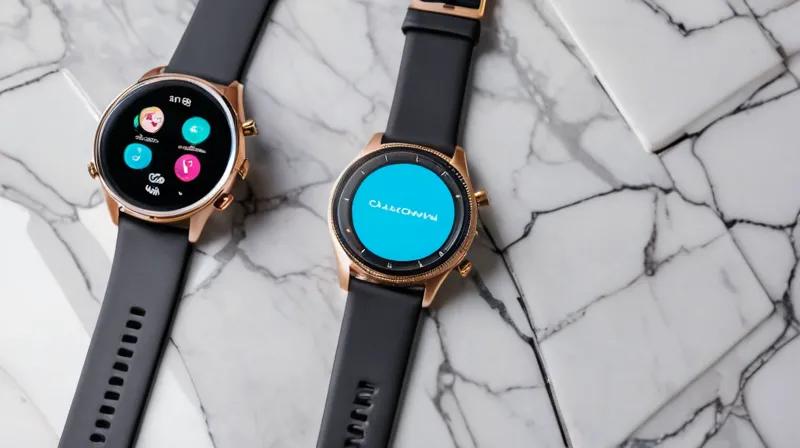
Wearable devices are computing devices that you wear on your body, such as smartwatches, fitness trackers, and smart glasses. The Snapdragon Wear Elite chipset is designed to power these devices with advanced processing capabilities, making them more powerful and capable than ever before.
1.2 Why Develop for Wearables?
Wearables represent the future of computing because they provide always-on, context-aware computing. Unlike smartphones that we carry in our pockets, wearables are constantly available and can provide real-time information and interactions without requiring us to pull out our phones.
Step 2: Setting Up Your Development Environment
2.1 Installing Required Software
To begin developing for wearables, you'll need to install the Android Studio development environment, which is the primary tool for creating wearable applications:
# Download Android Studio from the official website
# Install Android Studio on your computer
# Launch Android Studio and install the Wear OS SDK
Why this step? Android Studio provides the integrated development environment needed to create applications that can run on wearable devices. The Wear OS SDK includes all the tools and libraries necessary for wearable development.
2.2 Creating a New Wearable Project
Open Android Studio and create a new project with the Wear OS template:
- Select "Create New Project"
- Choose "Wear OS" as the target device
- Select "Wear OS App" template
- Configure your project name and package name
Why this step? Using the Wear OS template ensures that your project is properly configured for wearable devices, including the correct dependencies and layouts optimized for small screens.
Step 3: Exploring Wearable-Specific Features
3.1 Understanding the Wearable UI
Wear OS apps have a unique interface designed for small screens and touch gestures. The key components include:
- Round and square screens
- Touch and swipe gestures
- Complications (widgets that display information)
- Notifications and ambient mode
3.2 Creating a Basic Wearable Layout
Let's create a simple layout for our wearable application:
<?xml version="1.0" encoding="utf-8"?>
<androidx.wear.widget.BoxInsetLayout
    xmlns:android="http://schemas.android.com/apk/res/android"
    android:layout_width="match_parent"
    android:layout_height="match_parent"
    android:padding="8dp"
    >

    <TextView
        android:id="@+id/text"
        android:layout_width="wrap_content"
        android:layout_height="wrap_content"
        android:text="Hello Wearable!"
        android:textSize="16sp"
        android:layout_gravity="center"
        />

</androidx.wear.widget.BoxInsetLayout>
Why this step? The BoxInsetLayout is essential for wearable applications because it automatically adjusts the layout for both round and square screens, ensuring your app looks good on all wearable devices.
Step 4: Implementing Core Wearable Functionality
4.1 Adding Complications Support
Complications are small widgets that display information on the watch face. Here's how to add a simple complication:
public class MyComplicationProviderService extends ComplicationProviderService {
    @Override
    public void onComplicationUpdate(int complicationId, ComplicationData complicationData) {
        // Create a new complication data
        ComplicationData data = new ComplicationData.Builder(ComplicationData.TYPE_SHORT_TEXT)
                .setShortText(ComplicationText.plainText("Wearable App"))
                .build();

        // Send the update
        updateComplicationData(complicationId, data);
    }
}
Why this step? Complications allow your app to provide quick, glanceable information directly on the watch face, making your wearable application more useful and integrated with the user's daily routine.
4.2 Handling Touch Gestures
Wear OS devices use specific gestures for navigation. Here's how to implement basic gesture handling:
public class MainActivity extends Activity {
    @Override
    protected void onCreate(Bundle savedInstanceState) {
        super.onCreate(savedInstanceState);
        setContentView(R.layout.activity_main);

        // Handle swipe gestures
        View view = findViewById(R.id.main_layout);
        view.setOnTouchListener(new View.OnTouchListener() {
            @Override
            public boolean onTouch(View v, MotionEvent event) {
                // Handle touch events for wearables
                return true;
            }
        });
    }
}
Why this step? Understanding touch and gesture handling is crucial for creating intuitive wearable applications that feel natural to use on small, touch-sensitive devices.
Step 5: Testing Your Wearable Application
5.1 Using the Wear OS Emulator
Android Studio provides an emulator specifically for wearable devices:
- Open the AVD Manager in Android Studio
- Create a new virtual device
- Select "Wear OS" as the device type
- Choose a suitable system image
- Start the emulator
Why this step? Testing on an emulator allows you to quickly test your wearable applications without needing physical hardware, which is essential for beginners who may not have access to actual wearable devices.
5.2 Deploying to Physical Devices
For the best testing experience, deploy your application to a physical wearable device:
- Enable Developer Options on your wearable device
- Enable USB Debugging
- Connect your device to your computer via USB
- Run your application from Android Studio
Why this step? Physical testing is crucial because the performance, touch response, and user experience can vary significantly between emulators and real devices.
Step 6: Optimizing for Snapdragon Wear Elite
6.1 Understanding the Chipset Advantages
The Snapdragon Wear Elite chipset offers enhanced processing power, improved battery efficiency, and better connectivity options. When developing for this platform, consider:
- Using more complex algorithms that were previously impossible on older chips
- Implementing advanced features like real-time data processing
- Utilizing improved sensor fusion capabilities
6.2 Performance Optimization
Optimize your code for the new chipset's capabilities:
// Example of optimized wearable code
public class OptimizedWearableApp extends Activity {
    // Use efficient data structures
    private List dataList = new ArrayList<>();

    // Implement background processing
    private ExecutorService executor = Executors.newSingleThreadExecutor();

    @Override
    protected void onCreate(Bundle savedInstanceState) {
        super.onCreate();
        // Initialize with minimal resources
        initializeApp();
    }
}
Why this step? The Snapdragon Wear Elite chipset's enhanced capabilities mean you can create more sophisticated applications, but you must optimize your code to take full advantage of these improvements while maintaining battery life and performance.
Summary
This tutorial has walked you through the fundamental steps of developing applications for the next generation of wearable devices powered by Qualcomm's Snapdragon Wear Elite chipset. You've learned how to set up your development environment, create wearable-specific layouts, implement core functionality like complications and gesture handling, and optimize your applications for the enhanced capabilities of the new chipset.
While this is just the beginning of wearable development, you now have the foundation to build more complex applications that can leverage the powerful processing capabilities of modern wearables. As the wearable market continues to evolve, developers who understand these principles will be well-positioned to create the next generation of computing experiences that move beyond traditional smartphones.